The columns “Product texts” and “Product picture” assume the description of the product, whereas the column, “Product Picture”, limits itself alone to the visual product description. The column “Product texts” rather serves, as the name already suggests, as the literal description of the item. The fields “Matchcode” and “item number” alone represent an exception here. These two fields are obligatory input fields, which one recognizes by the blue font. These fields must be filled out, because they are necessary for saving the file in Ingenious.V12. The matchcode identifies the record clearly. That means there are no two matchcodes alike in one database. If you want to name a matchcode after an already existing matchcode, an appropriate reference display window appears.
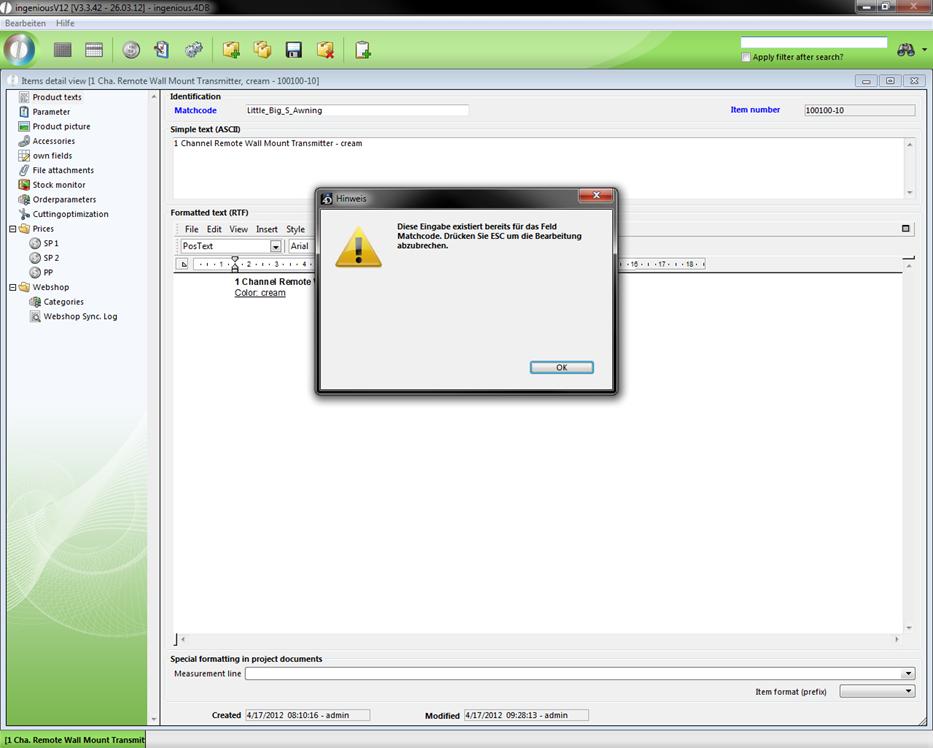
After the entry, secure these obligatory fields automatically (field is in grey), in order to protect against unintentional changing. You can remove this safeguard any time by double-clicking on the (blue) font to change the content.
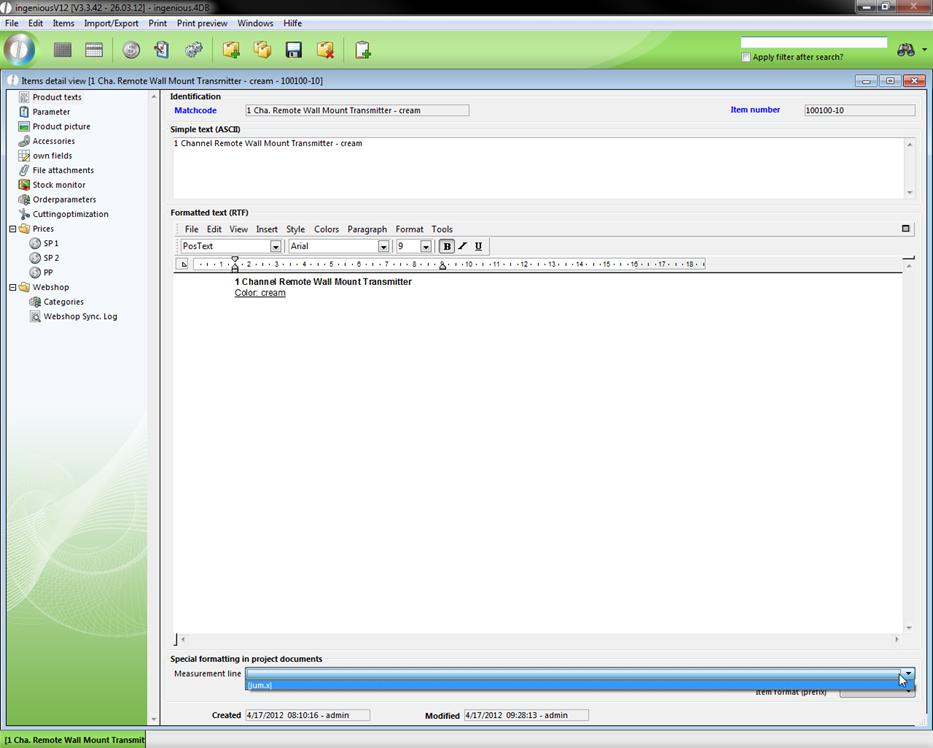
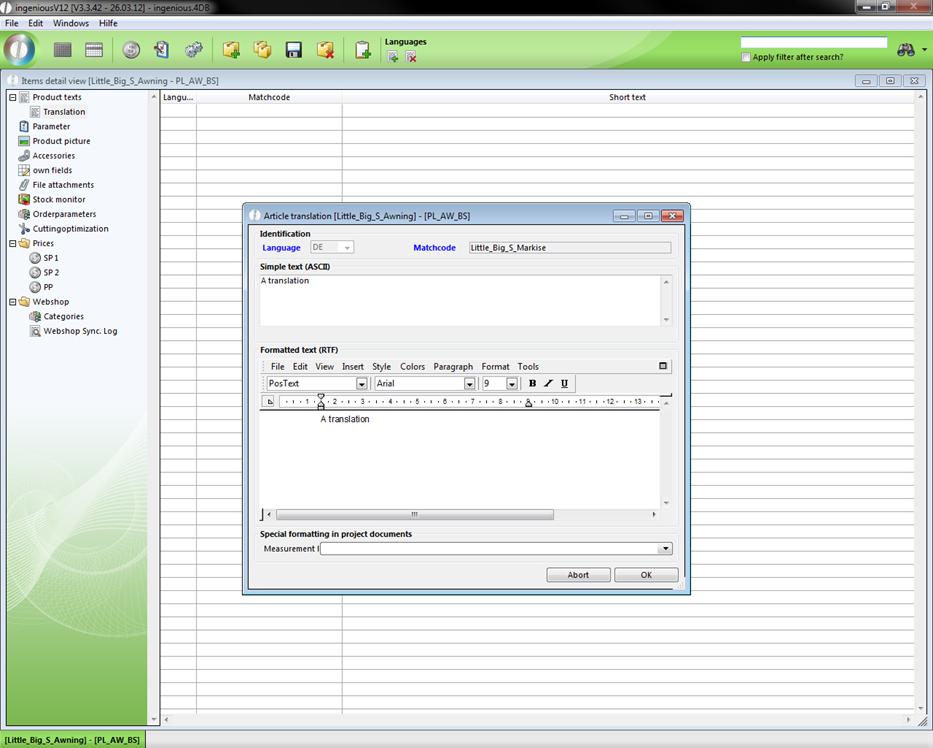
In addition, in this column you will find fields to attached descriptive texts next to the obligatory fields. The text input field “Simple Text (ASCII)” and the Ingenious.V12 text processing in the area, “Formatted Text (RTF)” are available to you. In the area, “Formatted Text (RTF)”, you are limited neither by the available space nor by creative freedom. This way, you can use all possibilities of the integrated text processing, such as tabs, frames, colors, character fonts and even the insertion of diagrams/illustrations. For these reasons this area is also suitable for providing operating or handling instructions. The third are of this column is “Special formatting in project documents”. Here you can specify the measurement row (display of the item measurements or quantity with the output in the project positions) and position format (text formatting of the project document for printing with text modules) of the item. You can place the standard pre-setting for the measurement row in the administrative tool, “Program settings” in the column, “items” In the column, “Selection Lists”, you can also insert more selection options of the measurement row with the module setting “Product Catalog” and enter “Multipos.Measurement Row”, and you can edit this with the field editor (Shift + F2).
Multi-lingual items
You can also create item texts in different languages. To do so, you have to check the option “Multi-lingual product” on the “parameter” page.
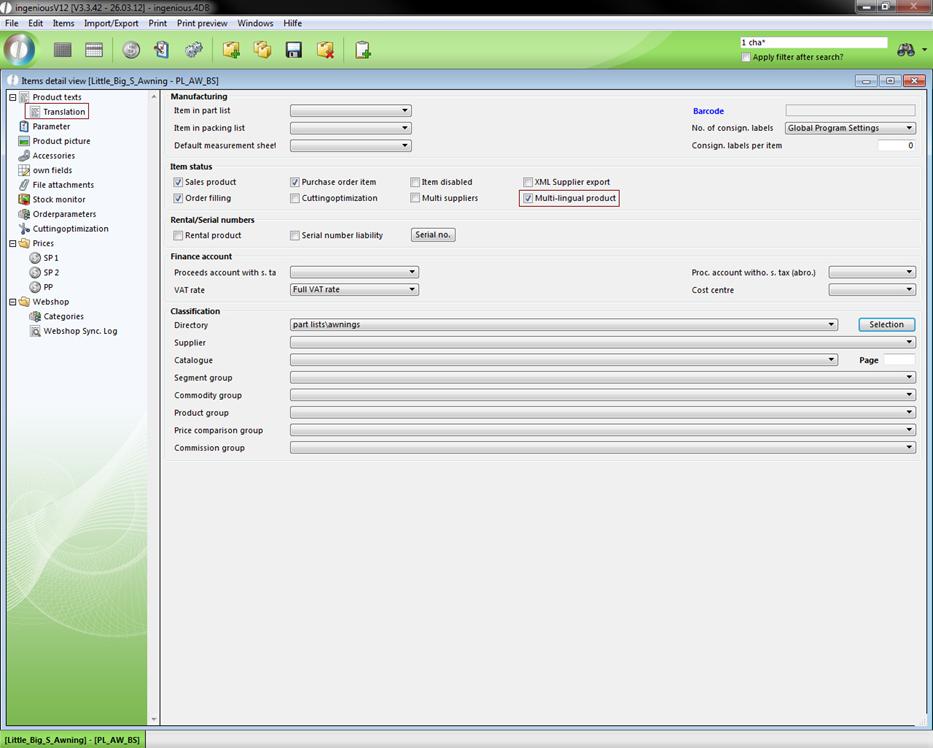
Now in the data selection area the item “Translation” is displayed.
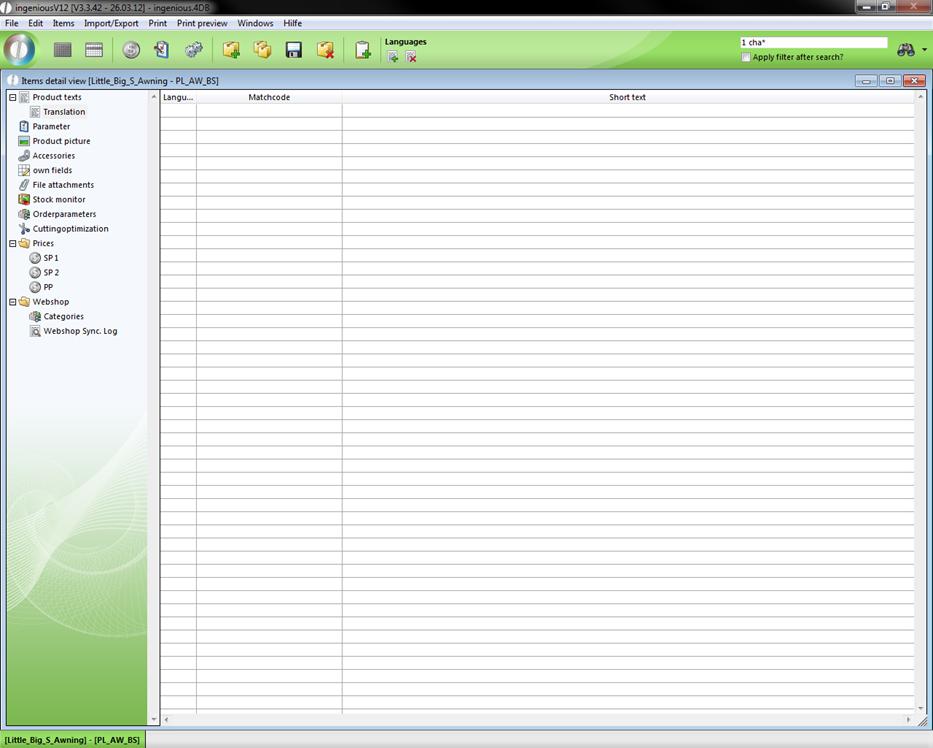
To add a new translation click on  . A window will open up where you can choose the desired target language and create the descriptive texts.
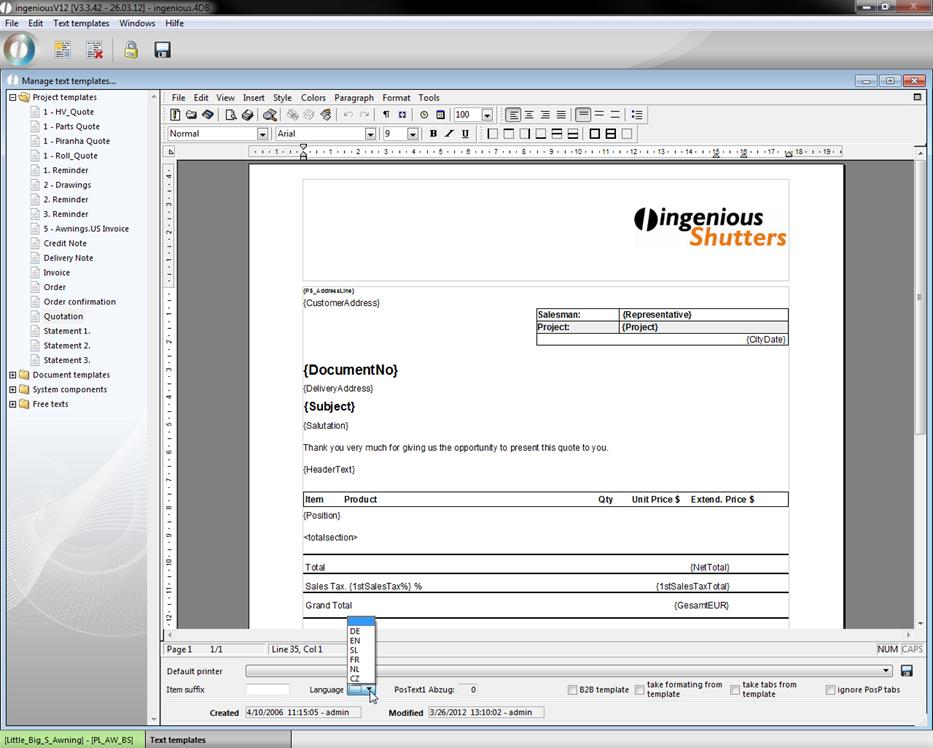
When you want to use a different language in a project, you have to choose the whished language in the “Template administration” in the bottom of a project template.